
B_inPlay
Video cue player for playback at conferences and shows: up to three players at once, groups, crossfades, in/out, video wall and NDI per player.
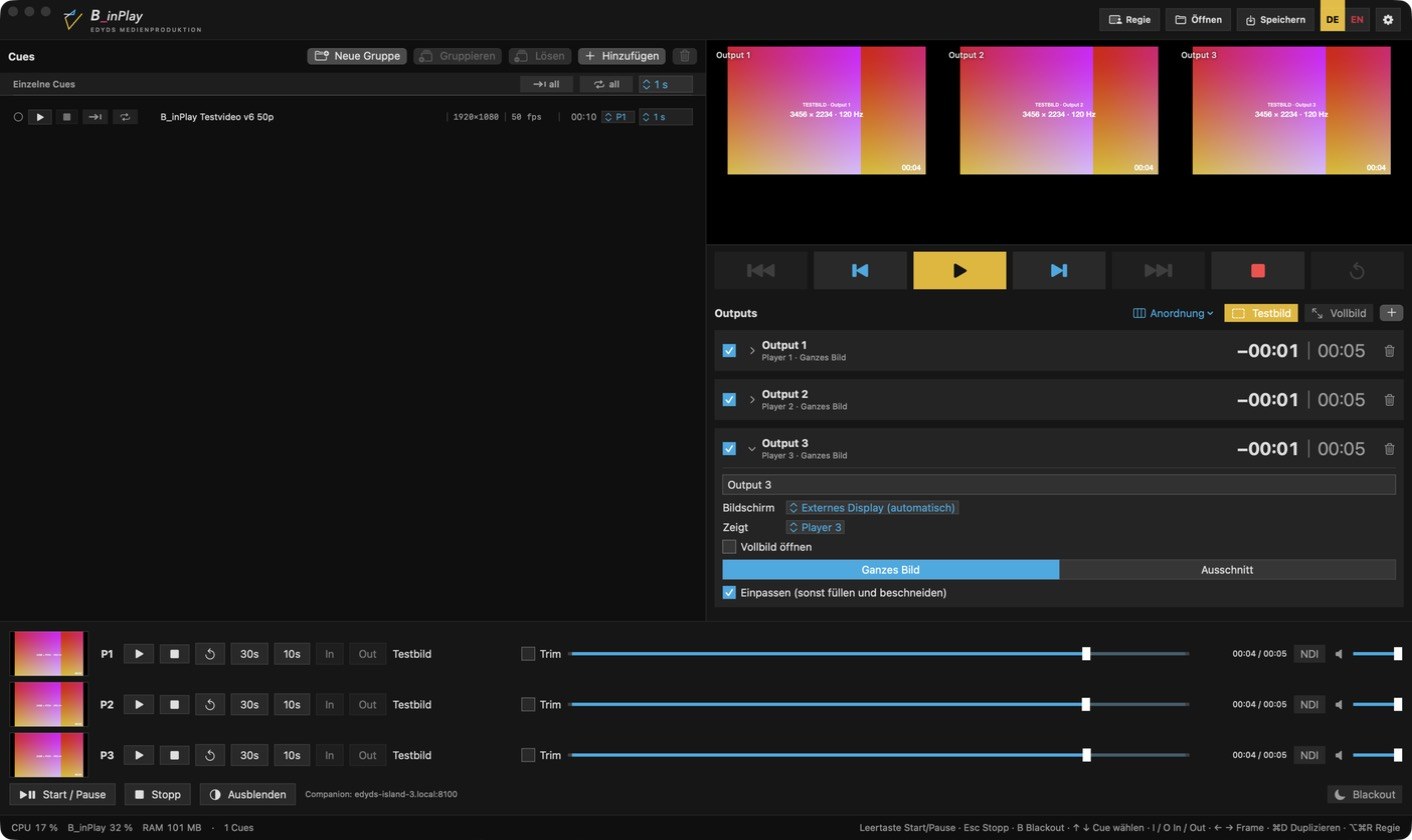
What B_inPlay can do
Up to 3 players
As many players as outputs (P1–P3), each with its own video and sound, at the same time. Outputs of the same player run frame-accurately in sync.
Cue list and groups
Groups one after another or at the same time, select with ⌘ and ⇧, ⌘G groups, ⌘D duplicates. Running cues show green.
At the end: next, loop, freeze
The next cue starts by itself; loop repeats, freeze holds the last frame. Enter plays the next cue like a take key. “Loop all” and “Freeze all” for all cues.
Crossfades
Adjustable per cue from cut to 5 s, for picture and sound; plus “fade out” and blackout.
In and out
Every cue plays only the chosen section. Handles on the progress bar with waveform, set live with I/O, frame steps with ← →.
Video wall
Per output the whole picture or a section; “Arrangement” spreads the picture across several outputs side by side, stacked or 2×2.
Images, PDF, GIF
Still images and PDFs (every page a cue), animated GIF, PNG and WebP play like videos, including crossfade and NDI.
Director view
A large window for the crew: remaining time in huge type (white, gold under 30 s, red under 10 s), cue name, progress and what comes next.
NDI per player
Every player sends as its own NDI® source (“B_inPlay P1” to “P3”), frame rate selectable from 15 to 60 fps.
Safe through the show
Details that count in live use.
Gapless loop
The second player loads the clip shortly before the end and only switches over – without seeking again.
Save and open shows
Cues, groups, outputs and settings as a .binplay file. A damaged file leaves the current show unchanged.
Collect media
A folder with the show and all files for moving to another computer; missing files are found automatically or relinked with “Search …”.
Display settings
Resolution, frame rate and arrangement of the displays directly in B_inPlay; new displays extend the desktop, the main display stays the main display.
Big time in the output
Per output remaining and total time in frames (mm:ss:ff), based on the chosen section.
Formats
Everything macOS can play (MOV, MP4, ProRes, H.264, HEVC …); B_inPlay automatically converts other formats into a playable copy with ffmpeg.
Control with Companion
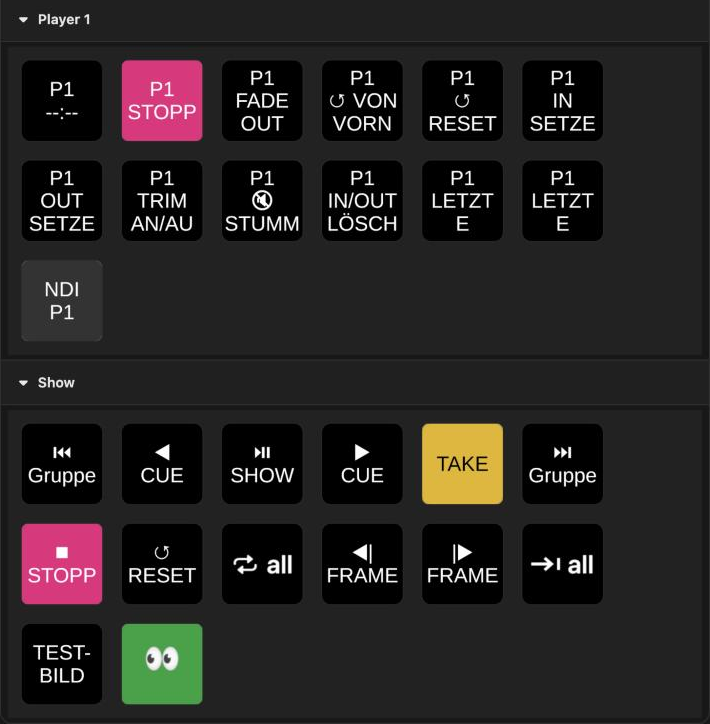
Port 8100, Companion and HTTP only, no browser remote control. The address is shown at the bottom of the program window.
/toggle  /stop  /fade  /reset  /blackout/on|off
/cue/<n>  /cue/next  /cue/prev  /cue/take
/group/<n>  /group/next  /group/prev
/p/<1-3>/toggle|play|pause|stop|restart
/p/<1-3>/last/<seconds>      jump into the last n seconds
/freeze/toggle  /repeat/toggle
/ndi/<1-3>/on|off|toggle
/status                       JSON: players, cues, groups
Technical data
| Version | 1.0.0 (Mac) |
|---|---|
| Mac | macOS 14 or later, Apple Silicon (arm64) |
| Windows | currently not available |
| Players / outputs | up to 3 players, any number of outputs, full screen on an external display |
| Formats | MOV, MP4, M4V, ProRes, H.264, HEVC, images, PDF, GIF; MKV, WebM and others via ffmpeg |
| NDI | NDI® per player in video resolution, 15–60 fps; NDI Tools required |
| Network | Companion/HTTP port 8100 · Companion module 0.7.5 |
| Language | Interface in German and English, switchable |
| Trial | 14 days, then license key |
Frequently asked questions
How do I play several videos at the same time?
B_inPlay has up to three players. Each belongs to one output and plays its own video with sound. With “Arrangement” you spread one picture across several outputs as a video wall: side by side, stacked or as 2×2.
How do I control the cue player with Bitfocus Companion?
Import the Companion module “edyds B_inPlay” (included in the download package) or use Generic HTTP with port 8100. In Companion, Presets contain ready-made buttons for Show, players 1 to 3, blackout and for every cue and group.
Can B_inPlay also play still images and PDFs?
Yes. Add images and PDFs like videos; every PDF page becomes its own cue. You set the display time per cue, from 3 seconds to infinite.
Is there an NDI output?
Yes, every player can be sent individually as an NDI® source (“B_inPlay P1” to “P3”). The computer needs the NDI runtime from NDI Tools.
What does Freeze mean, and how does the Take key work?
With Freeze a clip stays on its last frame at the end instead of jumping to the next cue. The Enter key (in Companion “Take”) then plays the next cue.
In which languages does B_inPlay run?
The interface is available in German and English and can be switched in the program.
How long can I try B_inPlay, and on how many computers does a license work?
The trial runs for 14 days with the full feature set. One license covers up to 2 computers of the licensee. The check runs offline.
Price & purchase
One-time €49, no subscription.
- Perpetual license for this program, use on up to 2 computers
- Free 14-day trial (Mac, full feature set)
- License key by email, invoice included
For now, purchases are handled by email to bb@edyds.de: you receive an invoice and then your license key. One license covers up to 2 computers of the licensee, which may be used at the same time. Prices are in euros (EUR). If you pay in another currency, the conversion takes place at payment, at the exchange rate of your bank or payment provider. This offer is aimed exclusively at businesses, tradespeople and freelancers (Sec. 14 German Civil Code), not at consumers. For privacy information see the legal notice / privacy policy (available in German).
Download
- B_inPlay 1.0.0 trial (Mac)Apple Silicon · macOS 14+ · 14 daysTrialDownload
- B_inPlay 1.0.0 for MacApple Silicon · macOS 14+ · full version with license keyFull versionDownload
NDI® is a registered trademark of Vizrt NDI AB. To send and receive NDI, the NDI runtime must be installed on the computer, for example via the free NDI Tools; it is not included. All manufacturer, product and brand names mentioned belong to their respective owners and are used for description only.